How to keep one record per driver, from hire to exit.
Six steps that keep every driver's pay rates, app access, events, coaching, hours and history in one record, from the day they are hired to the day they leave.
By Daniel Yadav · Published 13 September 2026
Why driver records fall apart
Most DSPs keep a driver in five places: payroll, a spreadsheet, a group text, Amazon's portal and someone's memory. When a question comes up, nobody has the whole story. Four gaps cause it:
- A driver's history is spread across payroll, spreadsheets and texts.
- Pay rate, events and coaching all live in different places.
- When a driver disputes something, there is no record to pull.
- Leavers keep their access and stay on schedules after they have gone.
What good looks like
- Every driver's pay rates are on their record before their first shift.
- Every driver is invited to Ultimate DA on day one.
- Every event and coaching is logged the same day it happens.
- Hours are checked before any shift is added.
- The full record is pulled before any dispute meeting.
- Leavers are set inactive the day they leave, and their records are kept.
The procedure
Six steps across a driver's time with you: two at hire, one on the day of any event, one every week, one when a dispute comes up and one when they leave.
-
1
Enter pay rates when you hire, not at payroll
On hireWhere General · AssociatesWho Owner or ManagerAdd the driver with Add DA and fill in the Transporter ID, name, payroll IDs, phone, email, hourly rate and overtime rate before their first shift. Pay rates are entered only here: no import ever writes them.
Done when: The driver is on the roster with both rates and a payroll ID, and nothing downstream shows a default rate for them.
-
2
Invite every new driver to Ultimate DA on day one
On hireWhere General · AssociatesWho Owner or ManagerOn the driver's first day, open their record and send the Ultimate DA invite by text. With the driver in front of you, make sure they create the account with the email on their record, verify it, and see your DSP's name in the app.
Done when: The record's app status reads active, and the driver can open their score and coaching.
-
3
Log the event and assign coaching the same day
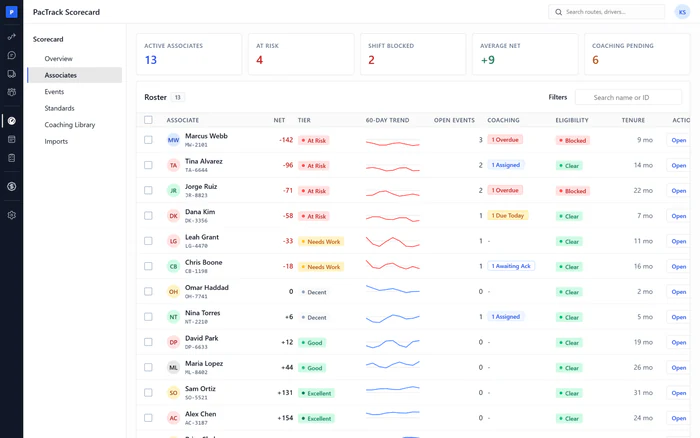
Same dayWhere General · AssociatesWho Manager or DispatcherWhen something happens with a driver, log it on their record as an event the same day, and assign coaching. There is no separate write-up: the event and the coaching, closed by the driver's acknowledgment, are the record.
Done when: The event is on the driver's Performance tab, and the coaching shows as assigned.
-
4
Check hours this pay period before adding shifts
WeeklyWhere General · AssociatesWho Manager or DispatcherBefore you add a shift for a driver, open their record and read the hours this pay period, and the rolling hours against the cap on the Schedule tab. Both are scheduled hours. Add the shift only if it keeps the driver inside the cap.
Done when: Every shift added this week was checked against the driver's hours first.
-
5
Pull the driver's full record before any dispute meeting
As neededWhere General · AssociatesWho Owner or ManagerBefore you sit down with a driver about a dispute, open their Documents tab and export the full profile. The coaching and acknowledgment records show exactly what the driver confirmed and when, and nothing on them can be edited.
Done when: You have the driver's full record in front of you before the meeting.
-
6
Set leavers inactive the day they leave
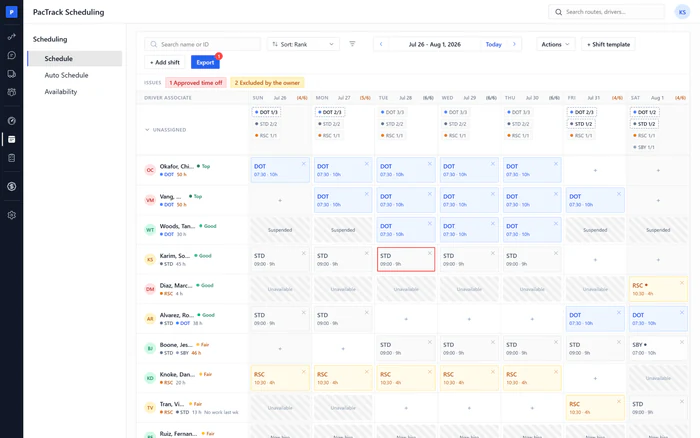
On exitWhere General · AssociatesWho Owner or ManagerOn the day a driver leaves, deactivate them on their record. Their app access ends, open coaching is parked, their remaining shifts show as hard issues on Schedule, and every record is kept. Then update their status in Amazon's portal and close out their final pay.
Done when: The record shows Inactive with the date, and the driver's remaining shifts are cleared from Schedule.
The three numbers to watch
Common mistakes
- Entering pay rates at payroll.
- Inviting drivers to the app later.
- Writing drivers up outside the record.
- Adding shifts without checking hours.
- Going into a dispute from memory.
- Leaving leavers active.