How to validate the weekly Amazon invoice, line by line.
Six steps that make every weekly invoice checkable: a daily record of the routes you ran, each day matched with Amazon, every rescue marked, and a dispute filed with the dollars owed.
By Daniel Yadav · Published 13 September 2026
Why invoice money goes missing
Amazon builds the weekly invoice from its own daily work record. If a route, a rescue or a route type is wrong there, the invoice is wrong too, and most DSPs never find out. Five gaps let the money slip:
- Nobody records the routes, route types and hours you ran each day.
- Mistakes in Amazon's daily work record are found weeks too late, if at all.
- The weekly invoice is accepted without a line-by-line check.
- Rescues and wrong route types slip through unpaid.
- Checking the invoice by hand takes hours, so it gets skipped.
What good looks like
- Every route type and its routes are on record for every day.
- Each day is marked matched with Amazon, or disputed with a note, the day after.
- Every rescue is marked paid or unpaid before the week closes.
- Every weekly invoice is checked the day it is ready, before anyone accepts it.
- Every short payment has a dispute document with the dollars owed, filed before the window closes.
The procedure
Six steps: three on the daily record and three when the weekly invoice lands. Each step names who does it, how often and the page it runs on.
-
1
Record every route, route type and hours before you close the day
Every nightWhere Dispatch · Work SummaryWho DispatcherMake sure every route type that ran has a row, type the counts for your manual route types and add a note on anything unusual. Then close the day on Return to Station, which sends the closing route count to Work Summary. Amazon-paid route types fill in when you import Amazon's weekly export.
Done when: Every route type that ran shows a number in Routes Ran, and the day reads Closed on Return to Station.
-
2
Check your day against Amazon's work summary, and correct it the same day
DailyWhere Dispatch · Work SummaryWho Dispatcher or ManagerOnce Amazon has posted yesterday, open its work summary next to yours and compare every route type: allocated, late cancels, dropped and delivered. Get Amazon's record corrected through the station the same day. Then set the day to Match With Amazon, or to Disputed with a note naming the difference.
Done when: Yesterday reads Match With Amazon and is locked, or reads Disputed with a note on what differs.
-
3
Mark every rescue paid or unpaid
DailyWhere Dispatch · Work SummaryWho Dispatcher or ManagerEvery rescue sent from Load Out or On Road lands on Work Summary. Mark each one Paid by Amazon or Unpaid, ours. Only rescues marked Paid are counted when the invoice is checked, so a rescue left unmarked can never be claimed.
Done when: The Not Marked tile reads zero.
-
4
Check the invoice against your week the day it lands
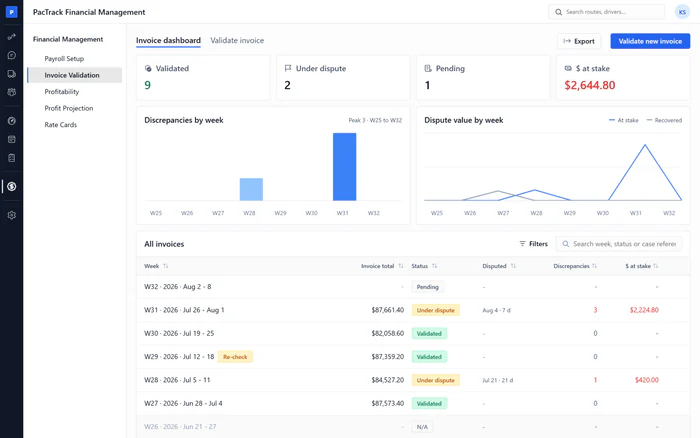
WeeklyWhere Financial Management · Invoice ValidationWho Finance, Manager or OwnerWhen the weekly invoice is ready, upload it in Invoice Validation. Routes by route type and hours, rescues, training, packages and the total due are checked against your Work Summary week and your rate cards, and every mismatch shows its dollars.
Done when: Check result reads All match, or every mismatch is listed with its dollars.
-
5
Never accept an invoice you have not checked
WeeklyWhere Financial Management · Invoice ValidationWho Finance, Manager or OwnerApprove an invoice only when every line matches, or when you knowingly accept the differences. Approve stays available even with mismatches on screen, so the rule has to be yours. Accepting in Amazon's portal is final, so never accept there before this check.
Done when: The week shows Validated with the date and who approved it, and nothing was accepted in Amazon's portal before the check.
-
6
Send the dispute with the dollars owed before the window closes
As neededWhere Financial Management · Invoice ValidationWho Finance, Manager or OwnerWith mismatches on screen, draft the dispute: Ultimate DSP builds it from the mismatched lines, with the dollars owed. Edit it, mark the week disputed, download the dispute document and file it in Amazon's portal yourself before the dispute window closes. Then record the case reference and the money recovered.
Done when: The week reads Under dispute with a case reference, and the dispute was filed in Amazon's portal before the window closed.
The three numbers to watch
Common mistakes
- Accepting the invoice in Amazon's portal before checking it.
- Leaving days Pending on Work Summary.
- Leaving rescues unmarked.
- Waiting until the dispute window is nearly closed.
- Disputing again with the same evidence.
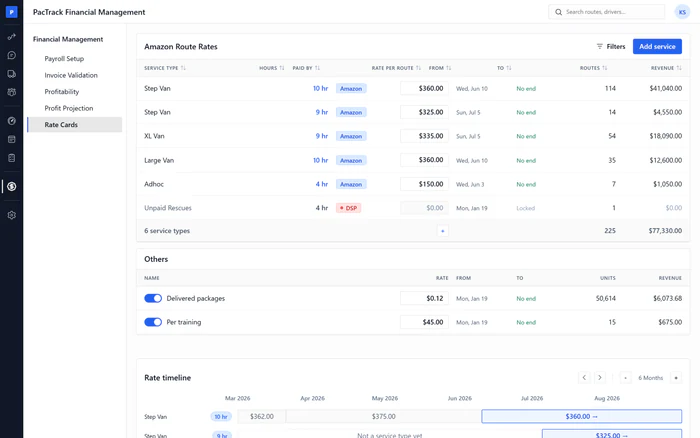
- Letting route type rates go out of date.