How to run the day from the Amazon file, day by day.
Seven steps from the night before to the first wave: drivers and backups lined up, one driver and one van per route, callouts covered from the bench, every driver texted and grounded vans kept off the sheet.
By Daniel Yadav · Published 13 September 2026
Why the dispatch morning falls apart
Most dispatch mornings are rebuilt from scratch: the Amazon file retyped, vans assigned from memory and callouts handled by text while the wave waits. Four gaps cause it:
- The day sheet is retyped from the Amazon file every morning.
- Vans are assigned from memory, including vans that should not go out.
- A no-show is handled by text, and the route sits.
- Drivers arrive without knowing their route, van or wave.
What good looks like
- Tomorrow's drivers and backups are on the sheet the night before.
- Every route has one driver, one van and a wave before the first driver arrives.
- Every backup knows before report time whether they are needed.
- A callout comes off the sheet the moment it happens, and the seat is filled from the bench.
- Every driver gets their route, van and wave by text.
- No grounded or in-shop van is on the sheet.
The procedure
Seven steps: one the night before, three every morning and three as the day needs them. Each step names who does it, how often and where it happens.
-
1
Line up tomorrow's drivers and backups the night before
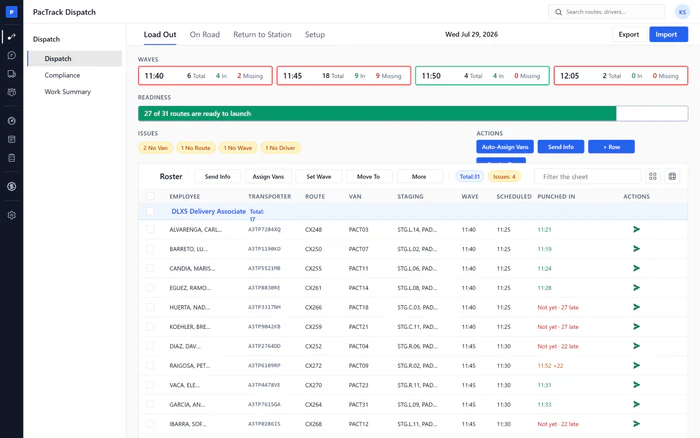
Every nightWhere Dispatch · Load OutWho DispatcherMove Load Out to tomorrow and build the sheet: import the roster file or add rows, and put your backups on Standby and On call. Roster the same drivers in Amazon's scheduling tool before the station's cut-off, because Load Out sends nothing to Amazon.
Done when: Tomorrow's sheet shows every expected driver, and Standby and On call have names.
-
2
Match drivers to routes, with no extra people on the clock
Every morningWhere Dispatch · Load OutWho DispatcherImport Amazon's routes file on today's date so routes and wave times fill in, then fix every gap until each route has a driver, a van, a route and a wave. Keep the bench to the backups you mean to pay, and act on anyone punched in without a route.
Done when: The readiness bar shows every route ready to launch, and no issue chips are left.
-
3
Tell each backup before report time if they are needed
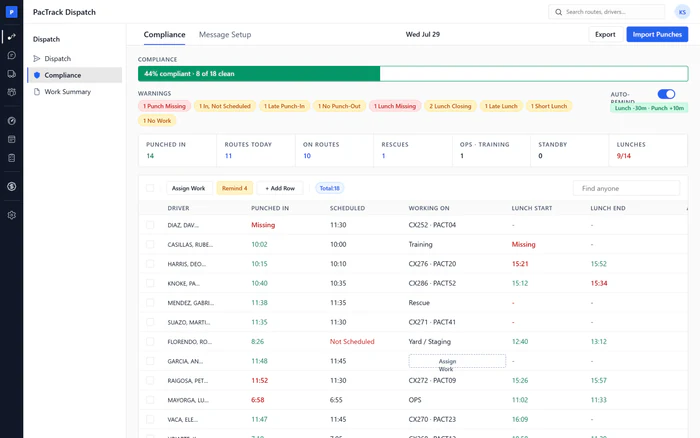
Every morningWhere Dispatch · Load OutWho DispatcherOnce the sheet is set, call or text every backup on Standby and On call: needed, or not today. Record each call's outcome. A backup told to come in is paid for the time even if you do not use them, so decide before they arrive.
Done when: Every backup has a recorded outcome, coming or not coming, before their report time.
-
4
Take a callout off the day sheet right away
As neededWhere Dispatch · Load OutWho DispatcherThe moment a driver calls out, move them to Called Out with the reason. Their seat stays on the sheet with its route, van and wave, ready to be filled. Take them off Amazon's roster as well, straight away.
Done when: The driver is on Called Out with a reason and a time, and their seat shows as open.
-
5
Swap a no-show from standby or on call before the wave
As neededWhere Dispatch · Load OutWho DispatcherWatch the wave strip. When a wave box turns red, see who has not punched in and call them. If they are not coming, move them off and swap in a driver from Standby or On call with the right van, before the wave leaves.
Done when: The wave box is green, the seat has a driver and a van, and the swap is marked on the seat.
-
6
Text every driver their route, van and wave
Every morningWhere Dispatch · Load OutWho DispatcherWhen the sheet is ready, click Send Info to text every driver their arrival time, wave, van, route and staging. Skip drivers already sent today, check the preview and send. Resend to anyone whose wave or van changes.
Done when: Every row's send icon is green, and the table foot counts every driver as info sent.
-
7
Keep grounded and in-shop vans off the day sheet
Every morningWhere Fleet · Vehicles, then Load OutWho Dispatcher or ManagerMark every van that is in the shop or grounded on its Vehicles profile. Auto-assign then never hands it out, and a van already on the sheet gets a warning. Replace those vans before drivers arrive.
Done when: No van cell carries an in-shop or grounded warning, and the No Van chip is clear.
The three numbers to watch
Common mistakes
- Building the sheet in the morning.
- Changing the sheet but not Amazon's roster.
- Letting backups report when they are not needed.
- Leaving a callout on the sheet.
- Assigning vans from memory.
- Not resending after a change.