How to stop Amazon DSP overtime, before payroll.
Five steps that catch a late route while it can still recover, keep late finishes on record and give next week's shifts to the drivers who finish on time.
By Daniel Yadav · Published 13 September 2026
Why overtime is found at payroll
Most overtime is not planned. It builds up one late route at a time, and nobody sees it until the timecards are added up. Five habits cause it:
- You find out a driver is behind only when they call for a rescue.
- Drivers cannot see whether they are on pace, so they do not speed up or ask for help.
- Late finishes turn into overtime, and it shows up at payroll when nothing can change it.
- The same drivers finish late week after week.
- Late drivers keep getting the same shifts, so the pattern repeats.
What good looks like
- Every driver on the road gets a status text at set times through the shift.
- A driver who falls behind hears from dispatch as soon as the board shows it, not at the end of the day.
- Rescues go out only after a check-in and a call.
- Every late finish the driver controlled is on record, with the cause.
- Next week's shifts go to the drivers who finish on time, inside the hours cap.
The procedure
Five steps: three on the On Road board during the shift, one in the office every day and one when you build next week. Each step names who does it, how often and the page it runs on.
-
1
Send Route status to every driver on the road
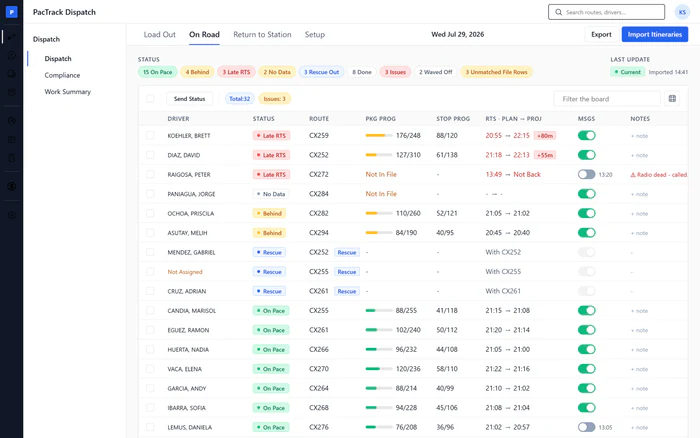
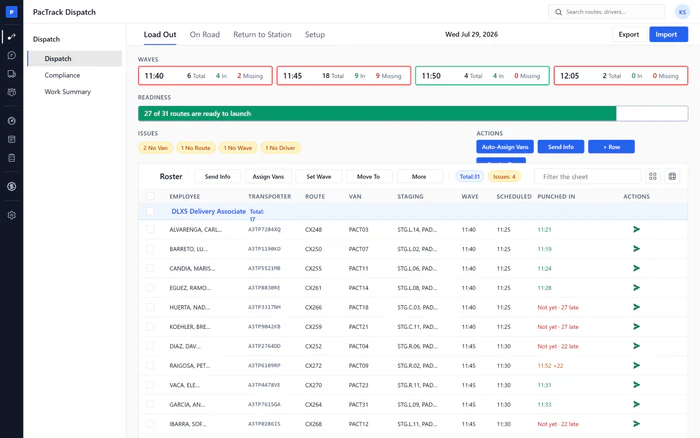
Through the dayWhere Dispatch · On RoadWho DispatcherAt set times through the shift, import the itineraries file and send the status text to every driver on the road. Each driver sees their stops done, packages left and projected return time, so they know whether they are on pace while there is still time to catch up.
Done when: The toast confirms the texts went out, and each row's send icon is filled in with the time it was sent.
-
2
Send a Behind check-in the moment a route falls behind
As it happensWhere Dispatch · On RoadWho DispatcherImport again for fresh numbers, click the Behind chip and send the check-in to every driver on it. The text tells the driver they are behind pace and asks if they need a rescue. Then call the driver and find out why the route is slow.
Done when: Every driver under Behind and Late RTS has a check-in sent, and you have spoken to each of them or tried to.
-
3
Send a rescue only after the Behind check-in
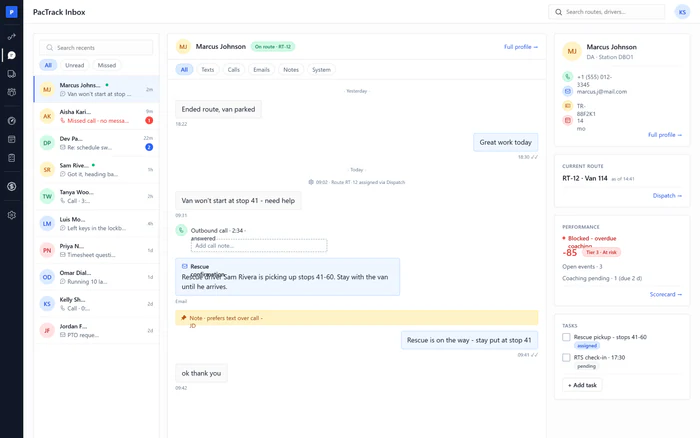
As neededWhere Dispatch · On RoadWho DispatcherA rescue is the last step, not the first. Check that the check-in went out and that you called the driver. If the route still cannot finish on time, send the rescue from the row, pick a driver who has finished first, and text both drivers where to meet.
Done when: The rescue shows under Rescue Out, the route's Rescue button is green, and the rescue is waiting on Work Summary to be marked paid or unpaid.
-
4
Record every late finish against your Standard
DailyWhere Scorecard · Standards and EventsWho Manager or DispatcherBuild a late-finish standard once. Then every day, filter On Road to Late RTS, check the cause, and log a manual event on each driver who finished late for a reason they controlled. The points lower their score, and the paired coaching goes to their phone.
Done when: Each late finish the driver controlled is an event on the ledger, with its cause written down.
-
5
Draft next week with late finishers ranked lower
WeeklyWhere Scheduling · Auto ScheduleWho Manager or DispatcherRun Auto Schedule with the ranking on Scorecard net score. Late-finish events lower a driver's score inside the score window, so they rank lower and your on-time drivers fill the week first. Keep the hours cap on, so the draft never plans overtime.
Done when: The run is complete, drivers with late finishes sit lower in the assignment log, and the draft is live on Schedule.
The three numbers to watch
Common mistakes
- Sending status once a day, or only when a driver calls.
- Sending texts from an old import.
- Sending a rescue before calling the driver.
- Using your strongest driver for every rescue.
- Logging every late finish without checking the cause.
- Turning the hours cap off to fill a busy week.